Arduino LESSON 3: For Loops for Simple LED Circuit
Arduino LESSON 3: For Loops for Simple LED Circuit

In this lesson we will create a circuit and write arduino code to control two LED’s.

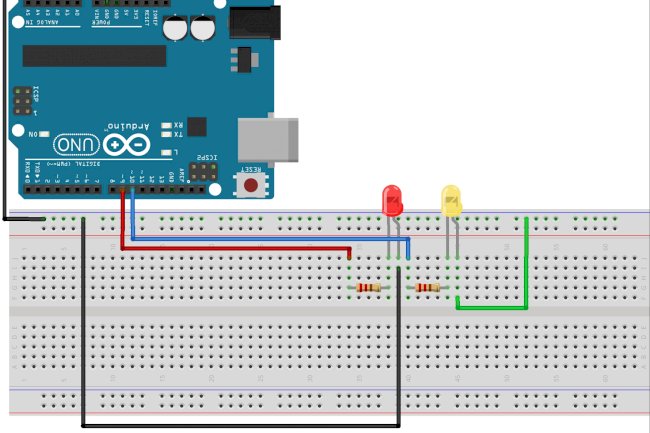
In previous lessons we wrote our first programs and built our first circuit. By now you should become familiar with how the breadboard works and how to work with variables and digitalWrite commands in the arduino IDE (Integrated Development Environment). We're going to build a slightly more complicated circuit to control two LEDs. Since we want to control each one individually, you'll need a separate Arduino pin to control each LED, and each LED must have its own current limiting resistor (330 ohms). At this point you should be able to draw your own circuit. This is a diagram of the circuit we'll be using. Yours doesn't have to be exactly like this, but it should serve the same function.
 This circuit will allow you to independently control two Light Emitting Diodes from the arduino microcontroller
Note that in this circuit the shorter leg of both LEDs must be grounded. To do this we run a wire from the ground pin on the Arduino to the top row of the breadboard. This "grounds" the top row. Now any device that needs to be grounded can simply be connected to the top row as this row is fully connected on the breadboard (see LESSON 1). Also note that both LEDs have their own 330 ohm current limiting resistor, and remember that direction is important with diodes. Make sure the longer leg is connected to the more positive part of the circuit. In this case the longer leg should be connected to the resistor (since the resistor connects to the + voltage coming from the Arduino pin).
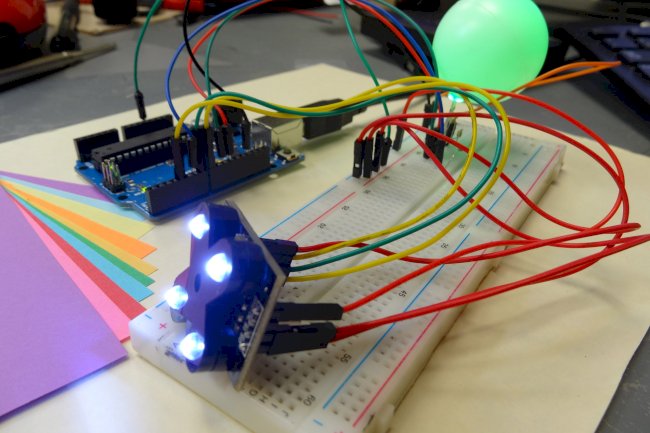
When you get the circuit built, it should look something like this:
 Photograph of our Arduino Circuit for Controlling Two Diodes.
Now that your circuit is built, we are ready to do some programming.
Our goal in this exercise is to be able to control the LEDs independently. We want to blink red ten times in a row and then blink yellow once. A "blink" should turn the LED on, leave it on for a quarter of a second, turn it off and leave it off for a quarter of a second, then this sequence repeats so we need to think about the variables we need, we have two LEDs, so we need two Declare variables to indicate the pins that the LEDs are connected to. In the diagram we connect the red LED to pin 9 and the yellow LED to pin 10, two LEDs are flashing, we need the variables onTime and offTime, respectively. LED. You should open your Arduino IDE and declare your variables. Think about how you want to name your variables.You don't have to use the same names that I use. My code looks like this:
int redLEDPin=9; //Declare redLEDPin an int, and set to pin 9
int yellowLEDPin=10; //Declare yellowLEDPin an int, and set to pin 10
int redOnTime=250; //Declare redOnTime an int, and set to 250 mseconds
int redOffTime=250; //Declare redOffTime an int, and set to 250
int yellowOnTime=250; //Declare yellowOnTime an int, and set to 250
int yellowOffTime=250; //Declare yellowOffTime an int, and set to 250
Now that your variables are declared, what should you do next? That’s right! You need to work on your void setup(). In your void setup you will need to set your pinModes. Since you are using 2 arduino pins this time, you need to issue two pinMode commads as follows.
void setup() {
  pinMode(redLEDPin, OUTPUT);  // Tell Arduino that redLEDPin is an output pin
  pinMode(yellowLEDPin, OUTPUT);  //Tell Arduino that yellowLEDPin is an output pin
}
Things are moving along and we are now ready to do our main business in the void loop(). Remember our goal is to blink the Red LED ten times, and then blink the yellow LED one time.
void loop() {

digitalWrite(redLEDPin,HIGH); //Turn red LED on
delay(redOnTime);             //Leave on for redOnTime
digitalWrite(redLEDPin,LOW);  //Turn red LED off
delay(redOffTime);            //Leave off for redOffTime


digitalWrite(redLEDPin,HIGH); //Turn red LED on
delay(redOnTime);             //Leave on for redOnTime
digitalWrite(redLEDPin,LOW);  //Turn red LED off
delay(redOffTime);            //Leave off for redOffTime

digitalWrite(redLEDPin,HIGH); //Turn red LED on
delay(redOnTime);             //Leave on for redOnTime
digitalWrite(redLEDPin,LOW);  //Turn red LED off
delay(redOffTime);            //Leave off for redOffTime

digitalWrite(redLEDPin,HIGH); //Turn red LED on
delay(redOnTime);             //Leave on for redOnTime
digitalWrite(redLEDPin,LOW);  //Turn red LED off
delay(redOffTime);            //Leave off for redOffTime

digitalWrite(redLEDPin,HIGH); //Turn red LED on
delay(redOnTime);             //Leave on for redOnTime
digitalWrite(redLEDPin,LOW);  //Turn red LED off
delay(redOffTime);            //Leave off for redOffTime

digitalWrite(redLEDPin,HIGH); //Turn red LED on
delay(redOnTime);             //Leave on for redOnTime
digitalWrite(redLEDPin,LOW);  //Turn red LED off
delay(redOffTime);            //Leave off for redOffTime

digitalWrite(redLEDPin,HIGH); //Turn red LED on
delay(redOnTime);             //Leave on for redOnTime
digitalWrite(redLEDPin,LOW);  //Turn red LED off
delay(redOffTime);            //Leave off for redOffTime

digitalWrite(redLEDPin,HIGH); //Turn red LED on
delay(redOnTime);             //Leave on for redOnTime
digitalWrite(redLEDPin,LOW);  //Turn red LED off
delay(redOffTime);            //Leave off for redOffTime

digitalWrite(redLEDPin,HIGH); //Turn red LED on
delay(redOnTime);             //Leave on for redOnTime
digitalWrite(redLEDPin,LOW);  //Turn red LED off
delay(redOffTime);            //Leave off for redOffTime

digitalWrite(redLEDPin,HIGH); //Turn red LED on
delay(redOnTime);             //Leave on for redOnTime
digitalWrite(redLEDPin,LOW);  //Turn red LED off
delay(redOffTime);            //Leave off for redOffTime

digitalWrite(yellowLEDPin,HIGH); //Turn yellow LED on
delay(yellowOnTime);             //Leave on for yellowOnTime
digitalWrite(yellowLEDPin,LOW);  //Turn yellow LED off
delay(yellowOffTime);            //Leave off for yellowOffTime
}
Okay, now you're ready to run your code. If you got it right, it should run and the red LED should blink ten times and then the yellow LED should blink once. If it doesn't work properly you need to fix your error, most of the time it's stupid typing errors or you've forgotten to end lines with a semicolon. Check your work and you will find your mistake. Sometimes having someone helps, if not, go through it with you.
Well, hopefully you have your code and circuit already working. You can play with the parameters and see that you can make the LEDs what you want.
Now imagine if I had asked you to blink the red LED 25 times and then the yellow one ten times. The problem is that it becomes very tedious to copy and paste the code all the time, and eventually it becomes impossible to keep track of how many times you've pasted the code. We need a better way to do repetitive tasks like blinking. Fortunately, there is something called a "for loop". A for loop repeats a clause or group of commands or lines of code a specified number of times. The for loop looks like this:
for (int j=1; j<=10; j=j+1) {

//do something cool in this loop

}
OK, there's a lot to do with this new code so let's break it down. First, look at the open and closed faucets. Any lines of code or commands that you enclose in curly braces are executed in the for loop. You can put as much or as little code in the for loop as you want. Now let's look at the first line, which is actually the one for loop. The parameters or arguments that define the behavior of the loop are in brackets. First, notice that we introduced a new variable, j. Since we don't need this variable in other parts of the program, we make it a "local" variable. That is, we don't declare it at the beginning of the program, we only declare it when we use it. Therefore we have "int j = 1".The int declares that we're going to use a new variable called j. Now j = 1 tells the loop to start with a value of j of 1. Then, jandlt; = 10 tells the loop to continue as long as j is less than or equal to 10. Then after the next semicolon we have j = j + 1. This tells the Arduino that every time it goes through the loop it will increment j by 1. Set j equal to one to continue the loop as long as j is less or less equals 10, and looping each time to add 1 to the value of j.
So, if we want to blink the red LED ten times, it becomes very easy using the following code:
for (int j=1; j<=10; j=j+1) {     // Start our for loop
    digitalWrite(redLEDPin,HIGH); //Turn red LED on
    delay(redOnTime);             //Leave on for redOnTime
    digitalWrite(redLEDPin,LOW);  //Turn red LED off
    delay(redOffTime);            //Leave off for redOffTime
}
Remember that our goal was to blink the red LED ten times and blink the yelow LED one time. We need to add a little code so that the LED will blink yellow. This should be done AFTER the for loop.
for (int j=1; j<=10; j=j+1) {     // Start our for loop
    digitalWrite(redLEDPin,HIGH); //Turn red LED on
    delay(redOnTime);             //Leave on for redOnTime
    digitalWrite(redLEDPin,LOW);  //Turn red LED off
    delay(redOffTime);            //Leave off for redOffTime
}

digitalWrite(yellowLEDPin,HIGH); //Turn yellow LED on
delay(yellowOnTime);             //Leave on for yellowOnTime
digitalWrite(yellowLEDPin,LOW);  //Turn yellow LED off
delay(yellowOffTime);            //Leave off for yellowOffTime
WOW, this is a huge improvement on our original code. The for loop makes it a lot easier to manage things. One thing I don't like about what we did in the code above is that we looped with the constant value ten. It would be better and smarter to declare a new variable at the beginning of the program, the new variable could be numRedBlinks. Then we would loop to jandlt in the for loop; = numRedBlink. Then we could set a link above in the numRed Power program to how often the red LED should blink.
Well, in the example above, I've done a lot of work for you. Now I would like you to write a program in which the yellow LED is also controlled within a for loop. Therefore you would declare two new variables at the beginning of the program. NumRedBlink and numYellowBlink. The program would have a for loop to blink the red numRedBlink LED times and then the yellow numYellowBlink LED to blink times. Good luck!
Arduino Starter Kit: Although a basic Arduino kit can help you get started, I suggest you buy a starter kit. The projects I show in this tutorial use the components in the kit, and it may be cheaper to get the kit.. .... You purchase a single component on the move. On Amazon, the price of the kit is less than $50.
What's Your Reaction?