Arduino LESSON 15: Arduino Color Sensor Project
Arduino LESSON 15: Arduino Color Sensor Project

Okay, so we spent the first 14 classes establishing the groundwork for circuits and programming. It's past time for us to have some fun. Based on what you've already studied, this project will teach you how to build an extremely cool circuit. This time, we'll utilise the RGB LED circuit you worked on in Lesson 13 and Lesson 14, but you'll set the colour based on the colour observed by a colour sensor! That's true, we'll include a colour sensor in the circuit. The LED will glow red if the colour sensor detects red. The LED will become blue if it detects blue light. The goal of this project is to have the sensor match as many colours as possible.
 We will use an arduino color sensor to set the color of the RGB LED
In addition to the arduino, breadboard, and RGB LED we've been using so far, you'll need a few other components for this project. The good news is that the components are inexpensive and can be readily bought from Amazon. To begin, you will require the Virtuobotix Color Sensor, which can be purchased from the link below. You'll need some male/female connection wires to attach the colour sensor to your Arduino, which you can get from the link below. The remainder of the items you'll need are probably already in your possession, but I'll provide a comprehensive list at the end of this lesson.
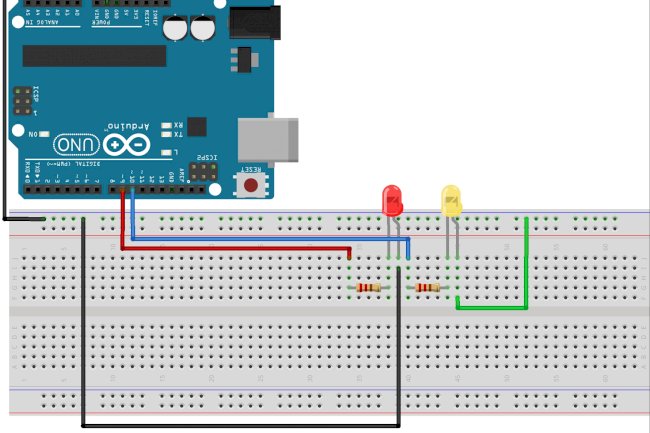
You'll want to utilise the same circuit from Lessons 13 and 14 for the LED side of things. Here's a reminder on the schematic;
 Circuit used to control RGB LED from an arduino
Instead of obtaining the desired colour from the user via the serial connection, we will adjust the LED colour by having it match the coloured cards we place in front of the sensor for this project. As a result, we'll have to find out how to use the sensor. It's actually not that difficult. First and foremost, we must connect it to the Arduino. That is probably best accomplished by following this table rather than attempting to draw a picture:
Connecting the Color Sensor to the Arduino
| Color Sensor Pin | Arduino Pin |
| S0 | GND |
| S1 | 5V |
| S2 | PIN 7 |
| S3 | PIN 8 |
| OUT | PIN4 |
| VCC | 5V |
| GND | GND |
Hopefully, that makes sense. Remember that the male/female wires mentioned above must be used to connect the Color Sensor to the Arduino. Unfortunately, the sensor is too large to fit on a normal breadboard. Use the chart above to make the connections carefully, but after you're through, your circuit should look like this:
 Color Sensor and RGB LED connected to the Arduino
Because there are so many wires, double-check your work against the table above.
This is how the senor works now. It will produce three distinct readings reflecting the relative "strength" of the three primary colours: red, green, and blue. Never worry, if you know the intensity of the main colours, you can figure out any hue because they are simply different "mixes" of red, green, and blue.
According to the table, which colour is read is determined by the voltages applied to the S2 and S3 pins:
| S2 | S3 | Color Read |
| LOW | LOW | Red |
| LOW | HIGH | Blue |
| HIGH | HIGH | Green |
To actually conduct a measurement, you must first pick the colour strength you wish to read by performing digital writes to pins S2 and S3 as shown above. The colour intensity is then read from the sensor's OUT output, which is linked to Arduino pin 4. To make the measurement, you must first do a pulseIn measurement on the Arduino's pin 4. The pulseIn measurement is an Arduino command that examines the pin you provide for a pulse and returns a value reflecting the length in microseconds of the pulse detected at the given pin. Assume we've previously declared a variable pulseWidth to retain the measured value. The following code would allow us to measure the pulseWidth at the outPin (make sure all variables are defined, and set the pinMode of outPin to INPUT since you are reading from it;
pulseWidth = pulseIn(outPin, LOW); //Measure length of a LOW pulse at pin outPinThis measurement will yield a result between 0 and 102,400. As a result, you must ensure that the pulseWidth variable is declared as an unsigned int. Normal integers can only contain numbers up to +/- 32,768 whereas unsigned integers can only carry positive values up to 4,294,967,295.
The number received and stored in the variable pulseWidth above may be understood as follows: The lower the number, the stronger the color being read. The larger the number, the weaker the color.
We need to turn this pretty strange number into something meaningful in the actual world. We want the values we send to an RGB LED to be between 0 and 255. Also, that is a very common scale for reporting RGB colours... by expressing the relative intensity of the R, G, and B components on a scale of 0 to 255. To begin, we must convert 0 to 102,400 to this range. 102,400/400 equals 256. Almost precisely what we're looking for! However, we must deduct one. As a result, rColorStrength = (pulseWidth/400) – 1. This yields a value between 0 and 255. The only difficulty is that high values in the original pulseWidth imply weak colours and tiny numbers mean bright colours, so we need to change that. We could solve that right now by saying:
(255 – rColorStrength) = rColorStrength;
That just changes things such that large numbers now mean bright hues. You can also see that this example is for reading red. You'd have to do it again by setting S2 and S3 to get gColorStrength and bColorStrength for green and blue.
So, with this little amount of arithmetic, we should be able to read R, G, and B numbers that roughly approximate the colour the sensor is viewing. I go through the code in the video. I'm not going to provide the code for this one since you'll need to think through it.
What's Your Reaction?