Arduino LESSON 8: Writing Analog Voltages in Arduino
Arduino LESSON 8: Writing Analog Voltages in Arduino

So far, we've done some really interesting things with the Arduino. We've learnt how to gather user input and how to communicate information to the user. We've learnt how to use for and while loops to control instructions. We're well on our way to completing some very impressive projects. The problem is that thus far, all of our commands to the Arduino pins have essentially been to turn the pin On or Off. That is, when we digitalWrite HIGH or LOW to the pins, we are either turning on the full 5 volts or turning it all the way off. The fact is that most of the time we want something in the centre. We could choose a voltage of 2.3 volts.
The arduino pins with the squiggly line next to them can write these between voltages. These are the arduino uno pins 3,5,6,9,10, and 11.
We claim that we desire an analogue voltage in the realm of engineering and electronics. That is, we want to be able to use any voltage we choose, not simply 0 or 5. To output an arbitrary voltage between 0 and 5, use the analogWrite instruction on the Arduino. Unfortunately, the analogWrite command's parameters are not as easy as sending it a value between 0 and 5. We must assign it a number between 0 and 255. If we typed analogWrite(mypin,0), it would apply 0 volts to mypin. If we typed analogWrite(mypin,255), it would apply 5 volts to the pin. As you can see, if we typed analogWrite(mypin, 127), we'd receive roughly 2.5 volts applied to mypin. As you can see, they are the simple ones, but we'll need to perform some arithmetic to find out precisely what number we should use for the voltage we desire. Remember when you had to solve the equation of a line in math? So you're going to do it for real this time, and for a cause. We need to find an equation that will allow us to compute the Write Value that we should utilise to calculate the Voltage.

You will need to choose the correct value between 0 and 255 to get your desired voltage
You can see that the equation is required for the line above. There is good news! Because you have two points, you may solve the equation of the line. The first point is (0,0), which means that if you want a voltage of 0 to be applied to the pin, you should analogWrite the value 0. The second point is (5,255), which means that if you wish to apply a 5 volt voltage, you should analogWrite the value 255, as stated previously. We now compute the equation of the line. The slope would be as follows:
m = (y2-y1)/(x2-x1) = (255-0)/(5-0) = 51
OK, now to get the equation of the line we will use the point slope form of a line, and we get:
(y-y1)=m(x-x1)
We can plug in the point (0,0) and get
(y-0) = m(x – 0)
And when we plug in 51 for m we get:
y = 51X
Remember X is the voltage we want, and Y is the value we write, so this equation can be rewritten:
Write Value = 51 X (Desired Voltage)
So, using this equation, we can determine exactly what value we need analogWrite to achieve the voltage we desire on the pin. I hope this is clear. If you are perplexed, watch the video. It will clear things out for you.
The main line is that we can use this equation to compute the number we need to write in order to achieve the voltage we desire at a pin.
For example, if we wanted to get exactly 2 volts, we would write 2X51=102. If we needed two volts on the pin myPin, we would use the analogWrite command (mypin, 102).
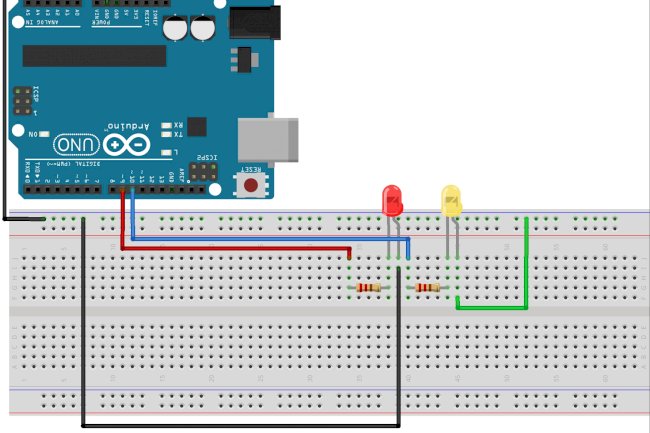
Let's start tinkering with a circuit now. Let's go back to the circuit we've been utilising for the previous several lessons. Hopefully, you still have it connected, but if not, we walk you through it step by step in Lesson 3.

This circuit will allow you to independently control two Light Emitting Diodes from the arduino microcontroller
Lets start with our code from Lesson 7:
int redLEDPin=9; //Declare redLEDPin an int, and set to pin 9
int yellowLEDPin=10; //Declare yellowLEDPin an int, and set to pin 10
int redOnTime=250; //Declare redOnTime an int, and set to 250 mseconds
int redOffTime=250; //Declare redOffTime an int, and set to 250
int yellowOnTime=250; //Declare yellowOnTime an int, and set to 250
int yellowOffTime=250; //Declare yellowOffTime an int, and set to 250
int numYellowBlinks; //Number of times to blink yellow LED
int numRedBlinks;  //Number of times to blink red LED
String redMessage="The Red LED is Blinking"; //Declaring a String Variable
String yellowMessage= "The Yellow LED is Blinking"; //Declaring a String Variable

void setup() {
  Serial.begin(115200);        // Turn on the Serial Port
  pinMode(redLEDPin, OUTPUT);  // Tell Arduino that redLEDPin is an output pin
  pinMode(yellowLEDPin, OUTPUT);  //Tell Arduino that yellowLEDPin is an output pin

  Serial.println("How Many Times Do You Want the Red LED to Blink? "); //Prompt User for Input
  while (Serial.available()==0){ }  //Wait for User Input
  numRedBlinks = Serial.parseInt(); //Read User Input

  Serial.println("How Many Times Do You Want the Yellow LED to Blink? "); //Prompt User for Input
  while (Serial.available()==0){ } //Wait for Input
  numYellowBlinks = Serial.parseInt(); //Read User Input
}

void loop() {

  Serial.println(redMessage);
  for (int j=1; j<=numRedBlinks; j=j+1) {     // Start our for loop
    Serial.print("   You are on Blink #: ");
    Serial.println(j);
    digitalWrite(redLEDPin,HIGH); //Turn red LED on
    delay(redOnTime);             //Leave on for redOnTime
    digitalWrite(redLEDPin,LOW);  //Turn red LED off
    delay(redOffTime);            //Leave off for redOffTime
}
  Serial.println(" ");
  Serial.println(yellowMessage);
  for (int j=1; j<=numYellowBlinks; j=j+1) {     // Start our for loop
    Serial.print("   You are on Blink #: ");
    Serial.println(j);
    digitalWrite(yellowLEDPin,HIGH); //Turn yellow LED on
    delay(yellowOnTime);             //Leave on for yellowOnTime
    digitalWrite(yellowLEDPin,LOW);  //Turn yellow LED off
    delay(yellowOffTime);            //Leave off for yellowOffTime
}
Serial.println(" ");
}
If you've been following along with these lessons, this code should make sense because we've been building it up step by step.
Now we must replace the four digitalWrite commands with analogWrite commands. Assume that instead of 5 volts, we wish to apply 1 volt to the LED. This should cause the LEDs to flicker substantially less brightly. Remember that we would not analogWrite a value of 1, but must instead compute the write value using our formula. Because we want a voltage of one volt, our write value should be 1 X 51, or the number 51. So, instead of digitalWrite, we should use analogWrite(redLEDPin, 51) or analogWrite(yellowLEDPin, 51). Notice that on the instructions that turn off the LEDs... digitalWrite(redLEDPin, LOW) would still work to turn the pins off, but I believe it is best practise to shift all writes to analogWrites in a scenario like this. To disable a pin using an analogue write, use the command analogWrite (redLEDPin, 0).
You should alter your code to replace the four digitalWrite commands with analogWrite commands now that you have this new knowledge. Experiment with different settings to observe how they affect the LED brightness.
What's Your Reaction?